Ali Raza Khan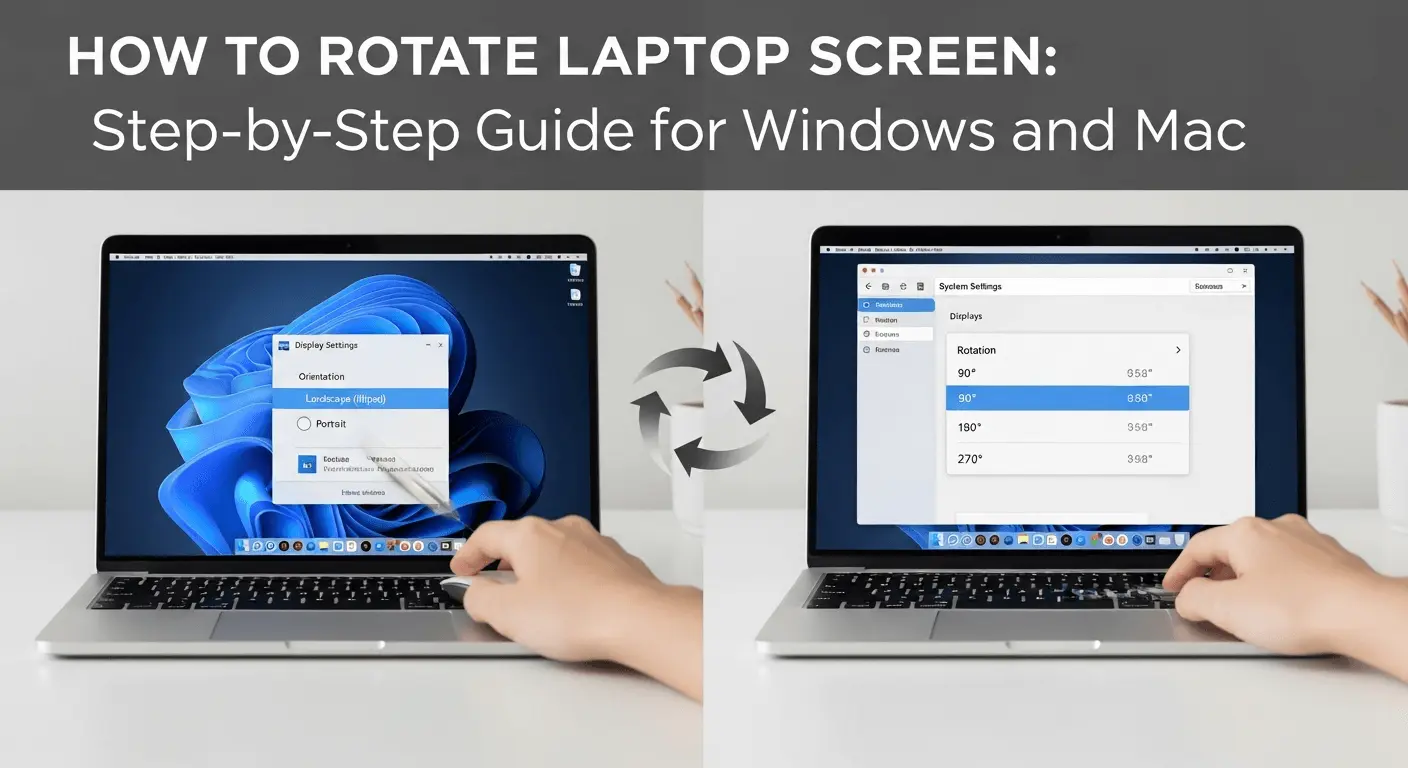
Understanding how to rotate laptop screen settings can be of utmost importance, whether your screen goes upside down without any notice, or you just need to work vertically with your document, coding, or presentation. This is an accidental problem for many users because of shortcut keys and a deliberate intention by many users to change the screen orientation in order to be productive. Luckily, the process of rotating your laptop screen is not a complicated one, and it does not need technical knowledge. This manual describes various ways torotate laptop screen on Windows and Mac computers, such as keyboard shortcuts, display settings, graphics control panels, and others. These steps will be used to correct or make your screen orientation faster and safer.
How to Rotate Laptop screen with Keyboard Shortcuts
Intel graphics Built-in keyboard shortcuts are one of the quickest methods to cycle the orientation of the laptop screen, particularly on Windows laptops.
Common shortcuts include:
- Command + Shift + Arrow (Up) -Normal screen
- Up, down, Alt + Control + Down
- on the arrow keys.
- Alt + Left arrow + control button- rotate left.
- Right literal Key + Alt + Right Arrow key- Rotate right.
In case your laptop screen spins without any reason, you can press Ctrl + Alt + Up Arrow, and it will likely help. Other systems, however, default to these shortcuts. When they fail to work, you will have to change the laptop screen with the system or graphics settings.
There are no default rotation shortcuts for Mac users, but they can enable screen rotation using the display settings added, which is an additional step.
How to Rotate Laptop Screen Using Display Settings.
The other sure way of rotating your laptop screen is using your display settings.
- Click the right-hand corner and choose Display settings.
- Display orientation. Scroll to Display orientation.
- Select Landscape, Portrait, Landscape (flipped), or Portrait (flipped).
- Click Apply and confirm
This process will be best when the keyboard shortcuts are disabled. It also provides that the change of screen orientation is implemented properly across applications.
- Click on the System Settings, then Displays.
- Select Displays, holding down the Option key.
- A Rotation menu will appear.
- Select the desired angle (90°, 180°, or 270°)
This feature is particularly useful in MacBooks with external monitors with vertical displays.
Spin Laptop Display With Graphics Control Panel
When you have tried all the standard methods and found that they have not helped, then you can rotate your laptop screen using your graphics driver software.
Intel Graphics:
- Desktop Right-Click Intel graphics settings.
- Go to Display → Rotation.
- Choose orientation and implement.
NVIDIA Control Panel:
- Open NVIDIA Control Panel
- Click on Select Display, then rotate the display.
- Selection of orientation and saving changes.
AMD Radeon Software:
- Open AMD Radeon Settings
- Navigate to Display
- Adjust rotation options
The technique is useful for gaming laptops or professional systems in which display drivers are used to handle high-end settings.
Why You Might Need to Rotate Laptop Screen
There are multiple reasons why users use laptop screens in a rotation manner:
- Reading extended documents or PDFs.
- Coding in portrait mode
- Touchscreen or 2-in-1 laptops.
- Correcting incidental screen switches.
Being in a position of learning how to rotate the laptop screen will make you productive and prevent unnecessary frustration.
Visit this site for for more tips and tricks.