Ali Raza Khan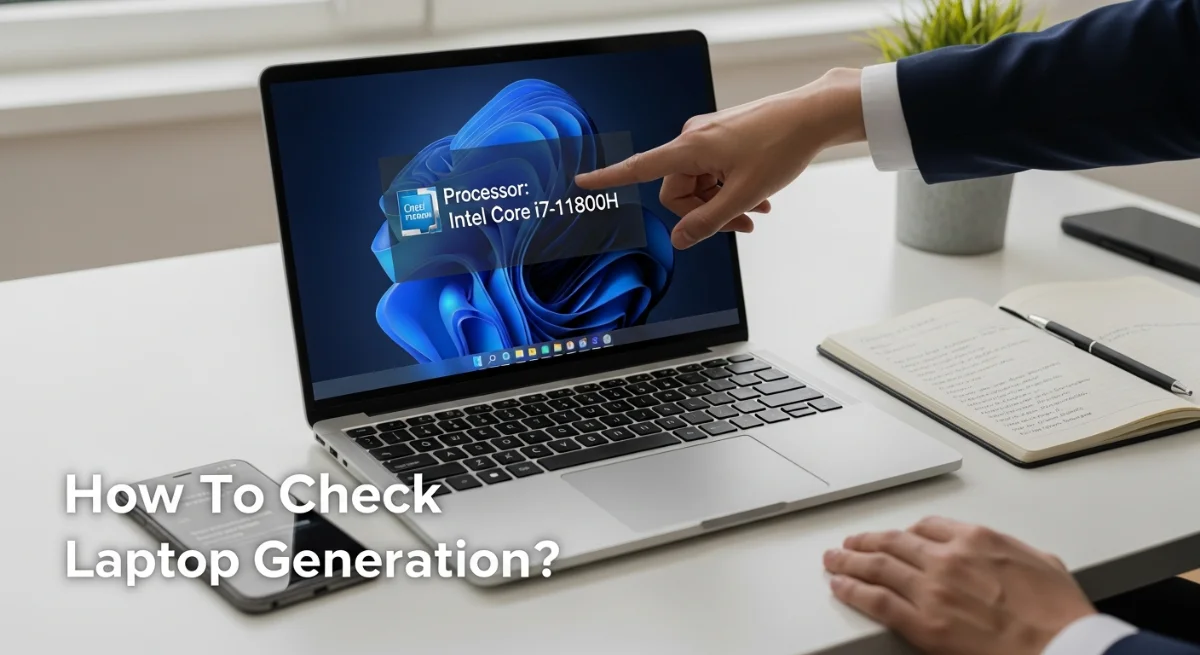
It is important to learn the process of checking the generation of laptops to determine the performance, compatibility and upgrade possibilities of your laptop. The production of laptops is a direct influence on the speed, efficiency and support of the current software. Regardless of what operating system you are on (Windows or MacOS), determining the generation of your laptop is fast and easily done when you are aware of where to find it. The guide describes the process of checking the laptop generation with the use of the in-built features like Settings, Task Manager, System Information, and About This Mac. You also will know how to make out the processor model numbers to know the particular generation. At the end, you will be sure of how to check the generation of laptops at any time.
What Does Laptop Generation Mean?
It is worthwhile to learn the meaning of the term before knowing how to check laptop generation. The generation of a laptop is the generation of its processor (CPU) e.g. the 8th, 10th, or the 12th generation of the Intel processor. New generations have better speed, use less power, have better graphics, and are more functional. The knowledge of this assists you to compare the devices, troubleshoot or even determine whether an upgrade is required.
How to Check Laptop Generation on Windows
There are various in-built tools in windows that allow one to quickly know how to check the laptop generation. Each of the ways brings out the model number of your processor with the first two or one indicating the generation of the CPU.
1. Check Laptop Generation Using Windows Settings
Settings are one of the simplest methods to learn how to check the generation of laptops:
- Click on start and go to settings.
- Navigate to System > About.
- Under Device Specifications, find Processor.
For example, if your processor reads Intel(R) Core(TM) i7-10850H, the “10” indicates a 10th-generation CPU.
2. Check Laptop Generation Using Task Manager
The other way that is widely used by the users who would like to know how to check the laptop generation:
- Click the right hand side of the Taskbar and choose Task Manager.
- Go to the Performance tab.
- Click CPU to check the name and the generation of processor.
With a starting value of 12, it represents 12 th generation.
3. Check Laptop Generation Using System Information (msinfo32)
The given method provides detailed system data:
- Press Windows + R to open Run.
- Type msinfo32 and hit Enter.
- Look for the Processor entry.
The 8th generation of a CPU is denoted by the number 8 as in the case of Intel Core i5-8500U.
How to Check Laptop Generation on macOS
To Mac users, the same cannot be said of the Windows: Here is how to check the generation of laptops:
- Click the Apple logo on the left hand side top.
- Select About This Mac.
- Check the info about the processor.
In the case of the Mac, the processor is an Intel, you have to visit the site of Intel to find the generation of the processor according to the model number. Their models, Apple Silicon models (M1, M2, M3), are not Intel-based, and named after their generations.
If You Are Still Unsure
In case these instructions fail to present the process of checking the laptop generation, enter in the name of the full processor, i.e. Intel Core i7-1255U, and find it under the official Intel or AMD site. Each manufacturer page has all specifications as to the generation, cores, threads, and architecture.