Ali Raza Khan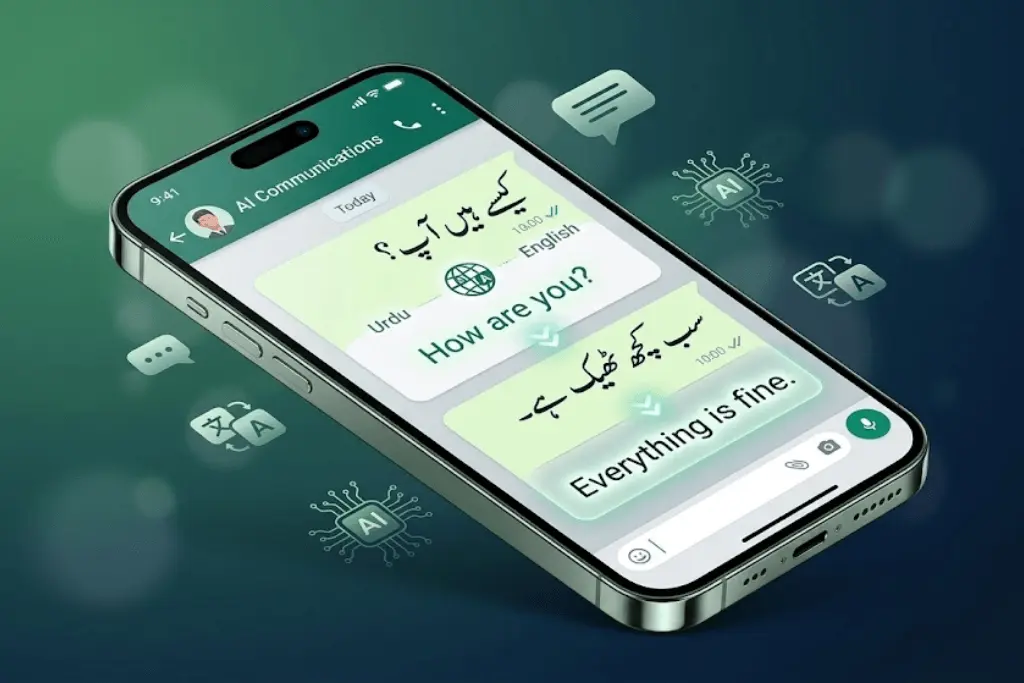
Introduction
Currently, WhatsApp does not have an automatic translation feature for messages within chats that can be used by users as part of their app functions. You can still use WhatsApp Automatic Message Translation through third-party keyboards or external apps, but it’s not available directly inside the WhatsApp application.
In this update, we will explain how to use WhatsApp messages to automatically translate them.
Method 1: Use Built-in Translate Option (Android)
The first way to translate a message is to use the built-in translate option.
1. Open the WhatsApp app and open up a chat (conversation) in the list of chats.
2. Once you’ve got the conversation open, tap and hold on the text you want to translate.
3. You’ll now see the three-dot menu.
4. Select “Translate,” assuming your Android supports this.
5. On the language list, select which language you want it translated to.
Note: You will only be able to use this option if you’re using an Android and have Google’s translate service.
Method 2: Use Google Translate App (Best Method)
The second method for translating a message is to use the Google Translate app. This is the best method because it automatically translates messages from WhatsApp very quickly and very easily.
To turn on Tap to Translate:
1. Download Google Translate from the Google Play Store and install it.
2. Open the app.
3. Go into settings and select the Tap to Translate option and turn it on.
4. Give the app the permissions it needs to function properly.
To use the Tap to Translate feature:
1. Copy any text you want to translate out of WhatsApp or some other chat.
2. As soon as you copy a message, Google will show you(whenever the message is copied) a preview of what that message will look like translated into your chosen language.
Method 3: Use Gboard Keyboard Translation
Gboard provides users with the ability to translate live while they are typing.
1. Install and update Gboard as your default keyboard.
2. Open the WhatsApp chat room.
3. Click on the keyboard, and tap the “Translate” icon.
4. Select which language you are translating to and typing in.
5. Begin typing your message; at the time you send your message, the system will generate a translated version of your message.
Method 4: iPhone (iOS) Translation Option
For iPhones and on iOS devices, using the built-in iOS translation functions as your means to facilitate translating messages.
1. Copy the message within the WhatsApp chat.
2. Tap the “Translate” button if supported under your iOS system.
3. Or paste into the Apple Translate app.
4. You can also use Google Translate if you want a more accurate translation.
Can WhatsApp Automatic Message Translation Work?
Presently, you cannot do full auto-translation for messages sent and received via WhatsApp.
This means the following:
- Messages sent to you will not automatically translate when sent to you
- You must manually translate using one of the above-mentioned methods.
Best Way (Recommendation)
The preferred user method would be as follows.
1. Using Google Translate “Tap to Translate” for incoming messages.
2. Using Gboard translation for outgoing messages.
This will provide for near real-time translation both ways.
Visit homepage for more tips and tricks.
FAQs
Does WhatsApp have auto translation?
No, WhatsApp does not currently support automatic translation of messages.
How can I translate WhatsApp messages automatically?
You can use Google Translate’s “Tap to Translate” feature or Gboard for near-automatic translation.
Is there any app for WhatsApp translation?
Yes, Google Translate is the most commonly used and reliable app.
Can I translate messages without copying?
Only partially. Gboard allows live translation while typing, but incoming messages still require copying.