Sana Khalid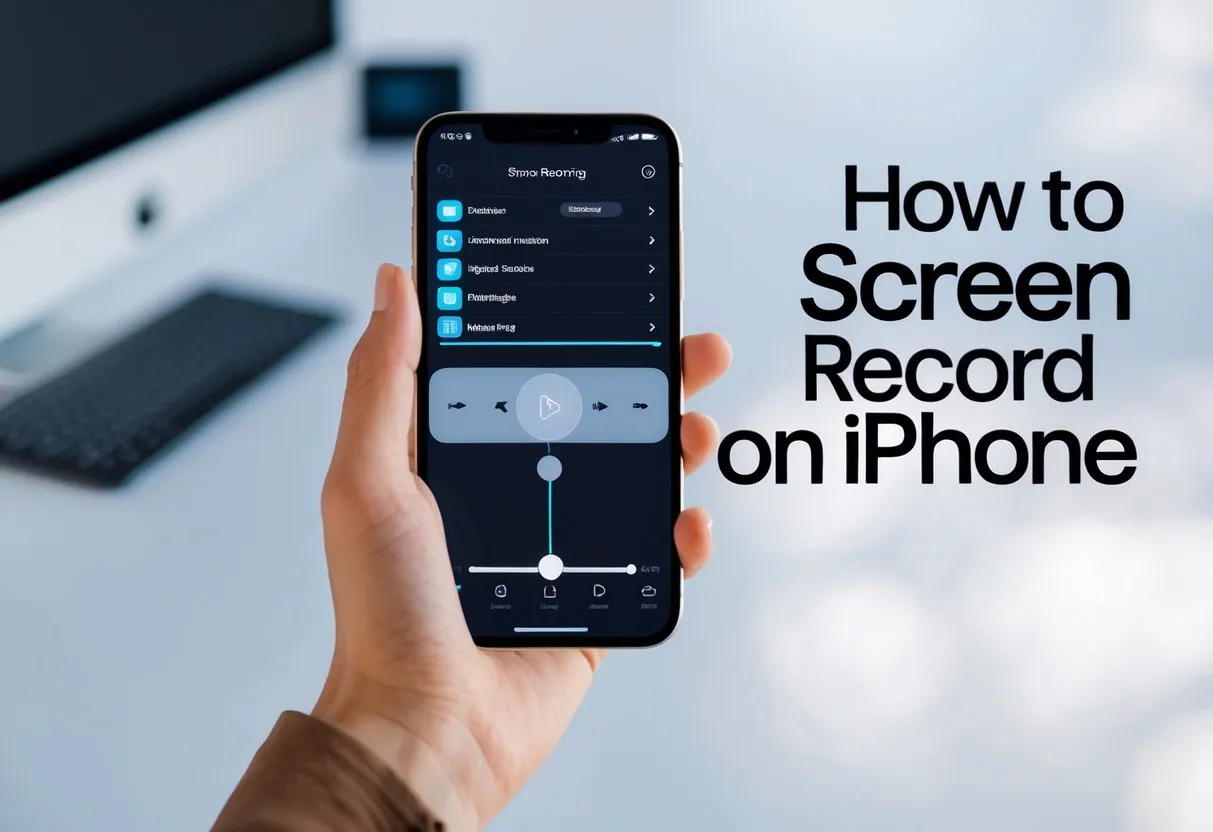
how to screen record on iphone
Knowing how to screen record on iPhone is extremely important in terms of recording tutorials, app walkthroughs, gameplay videos, and troubleshooting instructions. The in-built screen recording feature of iOS allows you to record moments in just a few seconds without having to install external software in Control Center. It is fast and simple to do whether you want to record the sound of the microphone, the sound of the recording system or save your video and share it. This guide provides a step-by-step guide on the way to enable, start, stop, and access your screen recordings. You also will be taught on how to record your voice with capturing your screen to make your videos more interactive and engaging.
Enable Screen Recording in Control Center
Prior to commencement of the recording, make sure that the Screen Recording option is visible in the Control Center.
- Open Settings → Control Center
- Scroll down and tap the green plus (+) icon next to Screen Recording
- The control is now added to your accessible tools
This is done to make sure that you can get to recording fast at any given time without manoeuvring through menus.
How to Start a Screen Recording on iPhone
After adding there is immediate recording:
- Touch the upper right end of your screen to bring out Control Center.
- Hit the Record (the circle within the circle) Icon.
- A 3-second countdown begins
- After stocking out the countdown timer your iphone begins to document all the images on the screen.
ATO recording You will notice the red recording indicator on the top of your screen to confirm that the recording is on.
How to Stop the Recording
It is as easy to stop a screen recording:
- Press the red indicator on the top of your screen closely then press Stop or
- Go back to Control Center and press Record button once more.
The recording that you have done on a screen is auto saved to the photos application.
How to Screen Record on iPhone With Audio
To be able to add a voice-over or narration:
- Open Control Center
- Press and hold the Record icon
- Tap Microphone On
- Tap Start Recording
This allows the external audio recording using the microphone in your iPhone.