Ali Raza Khan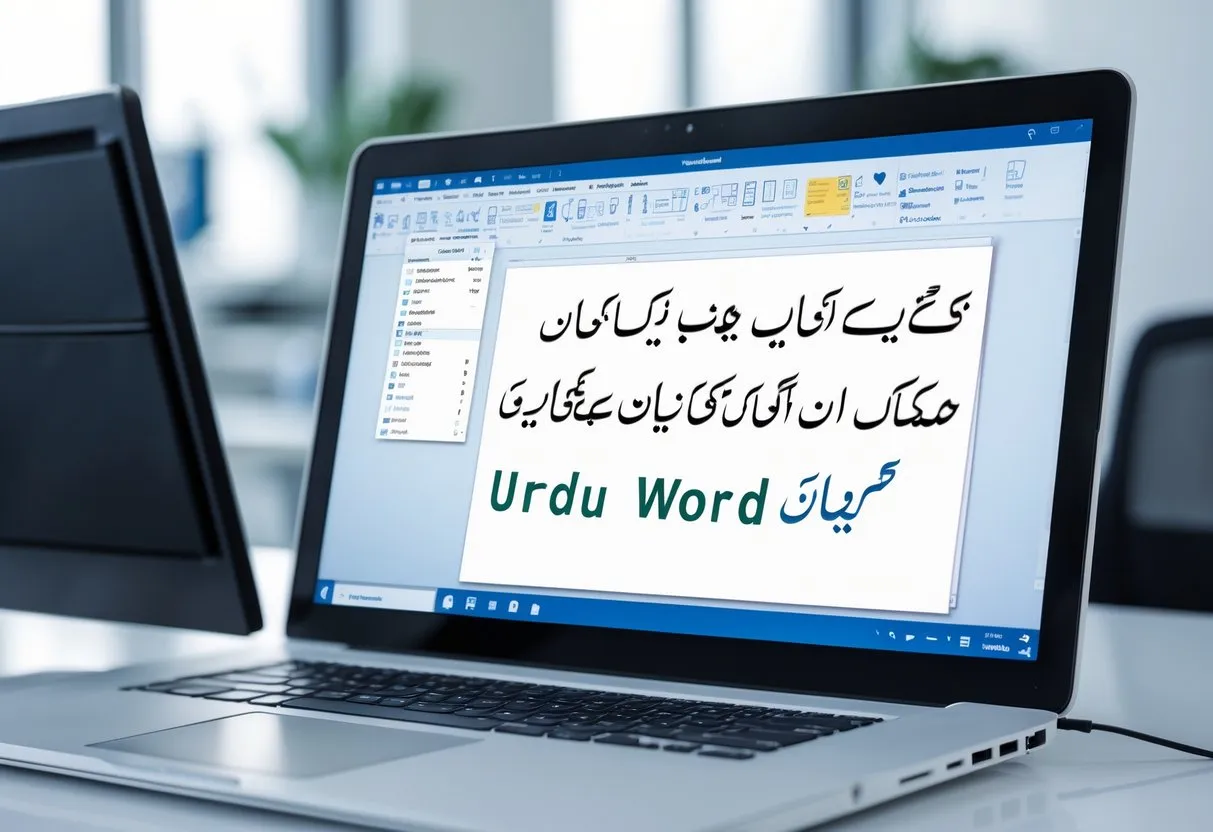
Write Urdu in MS Word
A study on how to write Urdu in MS Word is a necessary skill among students, writers and professionals who require typing documents using the Urdu language. Microsoft word also has the provision of typing in Urdu, though you should install the Urdu keyboard and language on your windows computer before you can do it. Once the Urdu keyboard is installed, you will be able to change typing languages, select an Urdu font with the text direction to the right-left. This tutorial includes a step-by-step instruction on how to add Urdu language in windows and how to make the MS word look and work in the right format to enable you to type and write fluently and professionally in Urdu.
Step 1: Add the Urdu Language in Windows To Write Urdu in MS Word
Before typing Urdu in MS Word, you must add the Urdu language to your Windows system.
- Open Settings on your computer.
- Go to Time & Language > Language & Region.
- Click on Add a language.
- Type Urdu in the search bar.
- Choose Urdu (Pakistan) or Urdu (India) according to your choice.
- Click Install and allow the Windows to add the required files.
After the language has been installed, select Add a keyboard and select Urdu Phonetic Keyboard. One can type more easily on the phonetic keyboard since the Urdu letters are similar to English key sounds.
Step 2: Configure MS Word for Urdu Typing
Once you have the Urdu keyboard installed, you have to configure the MS Word.
- Open Microsoft Word.
- Go to font list and select a font that is Urdu friendly i.e. Jameel Noori Nastaleeq, Nafees Nastaleeq or Naskh.
- Urdu is scripted in the right hand side. Press Ctrl + right shift in order to change the direction of writing.
- When you wish to change the direction to the English side then press Ctrl + Left Shift.
These environments allow the Urdu to be properly displayed and in the correct form.
Step 3: Start Typing Urdu in MS Word
After making everything set up, you may start typing.
- There are two languages to use in the taskbar ENG/URD by clicking the language icon.
- It is also possible to switch languages right away by a keyboard shortcut such as Windows Key + Space.
- Begin typing with Urdu phonetic keyboard in which the letters are in English sound patterns.
The AutoCorrect option is also available in MS word, in which English text may be translated to Urdu Letters automatically. This assists in enhancing rapidity and precision to regular Urdu typists.
Helpful Tips for Better Urdu Typing
- Nastaleeq fonts are to be used to have a natural handwritten Urdu appearance.
- Allow Left-to-Right text Direction in the creation of paragraphs.
- Fit Urdu fonts in case they are not default.
- Train on the phonetic keyboard to be able to type faster and more accurately.
FAQs
Q1: How can I Write Urdu in MS Word easily?
A1: To Write Urdu in MS Word, install an Urdu keyboard on your system and select Urdu in Word’s language settings for instant typing.
Q2: Which Urdu fonts work best in MS Word?
A2: Fonts like Jameel Noori Nastaleeq, Nafees Nastaleeq, and Alvi Nastaleeq are ideal for professional Urdu documents.
Q3: Can I format Urdu text like English text in MS Word?
A3: Yes, once you Write Urdu in MS Word, you can bold, italicize, align, and style the text just like English.
Q4: Is it possible to type Urdu without installing special software?
A4: Absolutely! MS Word supports Urdu natively; you just need an Urdu keyboard and appropriate fonts.
Q5: How do I fix spacing or alignment issues when writing Urdu in MS Word?
A5: Use Right-to-Left text direction, select a proper Urdu font, and adjust paragraph settings to ensure perfect formatting while writing Urdu in MS Word.